Knob Tool - Command Name
The Command Name to be sent is specified by the [Command] property of the button or tool. In addition, this property also specifies the name of the command’s value parameter, the command’s Universal Interface Service, other command parameters, and optionally the ID of its Status Point.
| [Command] Item | Description |
|---|---|
|
UIS SiteService |
The name of the UIS that issues the command. Leave blank on a templated screen. |
|
Facility ID |
The facility of the command as defined in the DDS. Leave blank on a templated screen. |
|
Command |
The name of the command as defined in the DDS. |
|
Value Parameter Name |
The name of the command’s "value" parameter. That is, the component parameter for which the button is going to set a value. Refer to the command component parameters in the DDS for the actual name; see UIS Commands for more information. This field specifies only the parameter name. The user can be prompted for the value or the value can be specified using the Parameters property. If used on a command tool, the tool's position determines the value (0 or 1) or when the user sets the position. You can leave this field blank if: 1) the command is fully defined in the DDS; or 2) if you specify all parameter names and their values using the Parameters property. |
|
Parameters |
Command parameters and their values. Use this option to set the parameter value to a literal value rather than prompting the user for a value (for example, Value=100, where Value is the parameter name and 100 is its value). Refer to the command components in the DDS for parameter names. Use a semicolon to separate multiple parameters (for example, SDate=T-1;EDate=T). The value for the parameter. With a command tool, leave this field blank since the position of the tool determines the value. If the command in the DDS specifies a value for a parameter, the DDS value takes precedence and the value specified here is ignored. Note: The maximum length of the command parameter string for a Send UIS Command message is 1200 characters. CygNet Software will report if a UIS Command message exceeds the maximum parameter length of 1200 characters. |
|
Status Point |
The ID of the Status Point for the button. Use the By UDC option on a templated screen. See Status Point for more information. |
Status Point
A Status Point is a special CygNet point that is used to monitor the status of a UIS command for the CygNet Studio command tools.
One or more command tool objects can be associated with a Status Point.
|
Status Point |
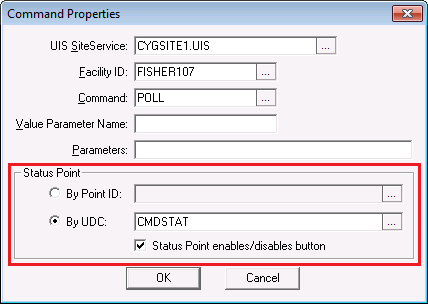
When the object’s command is in progress (that is, it’s in the communications queue), the value of the Status Point is set to "1:In Progress" and the button is disabled. The button remains disabled as long as the message is in the queue. Once the command fails or succeeds, the value of the Status Point is set to "2:Failed" or "3:Succeeded," respectively, and the object is re-enabled.
|
1:In Progress |
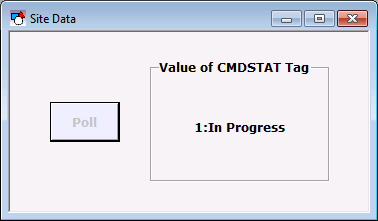
The purpose of the Status Point is to prevent users from repeatedly clicking ("pounding") on a command tool object and queuing up messages.
Master Scheduling Service Task
A Master Scheduling Service task can also be configured with a Status Point. This does not affect scheduling. It only affects CygNet Studio objects that have been assigned the same Status Point as the scheduled task. As long as the command is in the queue, the Studio command tool object is disabled.
|
Status UDC |
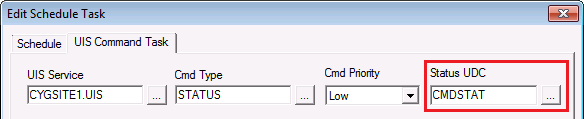
The UDC of a Status Point is user configurable. That is, it is something that you create; for example, CMDSTAT, POLLSTAT, etc. The Status Point type is a String Input. In a templated environment, create a Status Point for each facility that uses the templated screen.

